Choose the empty-room project
Select Create an empty-room image in the new-project flow when clearing is the final result you need. For a full redesign, choose another goal and YoDecor will still create the clean room as its first stage.
AI ROOM CLEARING
Most furniture visualizers simply place another object on top of a photograph. YoDecor first removes movable furniture and reconstructs the visible room, creating a much stronger foundation for a realistic redesign.
ONE CLEAR START
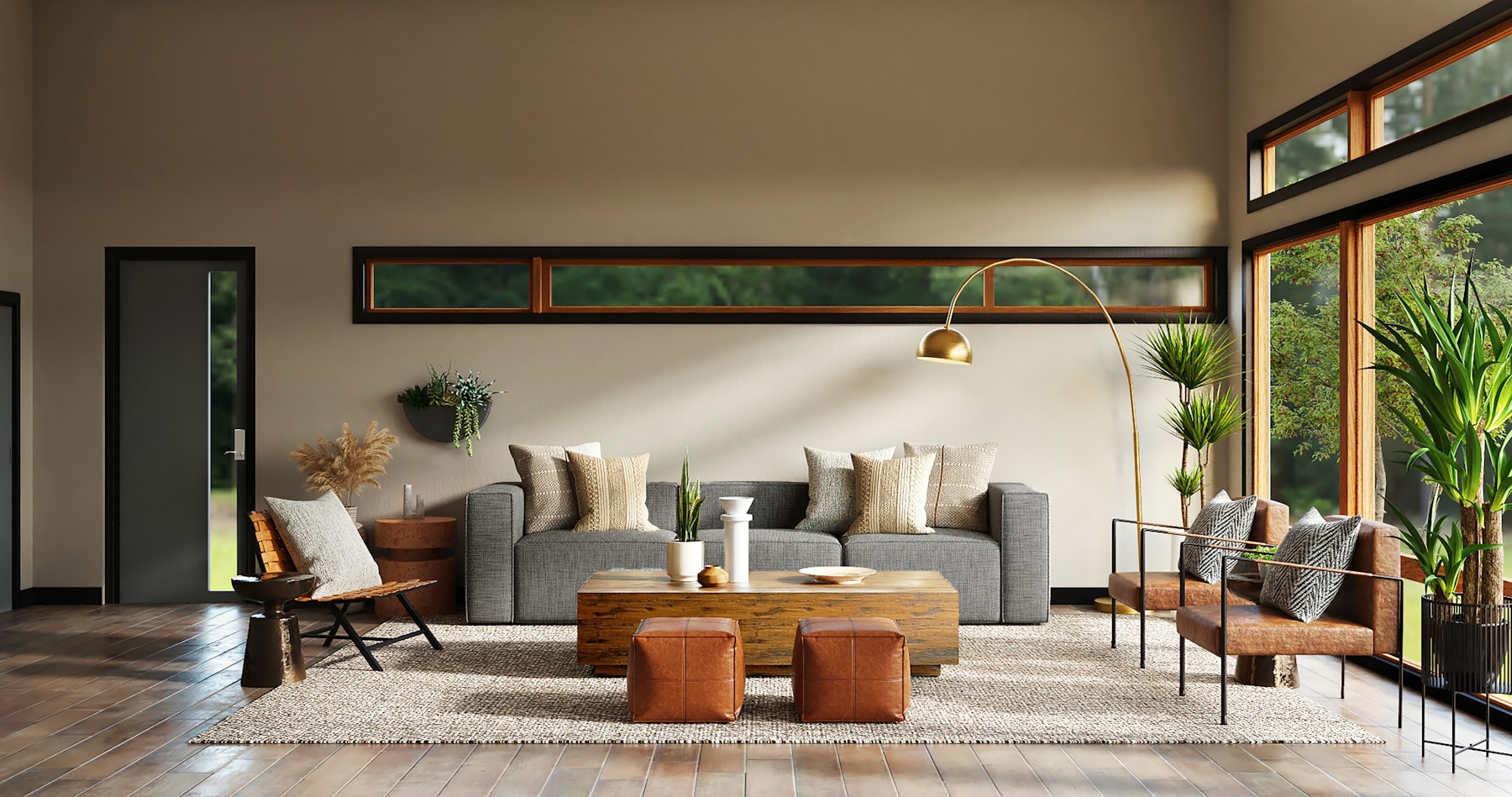
Select Create an empty-room image in the new-project flow when clearing is the final result you need. For a full redesign, choose another goal and YoDecor will still create the clean room as its first stage.
Beds, chairs, sofas, tables, loose decor and everyday objects can be cleared from the scene while fixed elements such as walls, windows and doors remain the visual reference.
When furniture is removed, AI fills the areas that were previously covered. A straight photograph with good daylight gives the model more visual information for a coherent result.
After the clean version is created, YoDecor can reuse it for new furniture and style variations. This avoids repeating the clearing step and helps produce a more consistent set of ideas.
View the original room, the cleared space and the furnished result. The comparison slider makes changes easy to understand and saved history keeps previous work available.
COMMON QUESTIONS
Results depend on visibility and image quality. Large overlapping objects or hidden architectural details may require another generation.
Yes. YoDecor saves the cleared room with the furnished result so it can be viewed again and reused for another version.
Yes. Choose Create an empty-room image at the start. The clean result is saved to your private project history and paid accounts can download it.